




“আপনার আইফোনের পাসকোড যাচাই করতে ত্রুটি হয়েছে” সমস্যাটি কীভাবে সমাধান করবেন?

এর কারণে আপনার আইফোন থেকে লক আউট হয়ে যাওয়া
আপনার আইফোনের পাসকোড যাচাই করতে ত্রুটি হয়েছে।
এই মেসেজটি হতাশাজনক হতে পারে, বিশেষ করে যখন আপনি জানেন যে আপনি সঠিক পাসকোডই দিচ্ছেন। এই সমস্যাটি সাময়িক iOS গ্লিচ, সফটওয়্যার ত্রুটি, কানেক্টিভিটি সমস্যা, বা সিস্টেম ভেরিফিকেশনের সমস্যার কারণে হতে পারে। সৌভাগ্যবশত, আপনার আইফোনটিকে আবার সচল করার জন্য আপনি কয়েকটি সহজ ট্রাবলশুটিং পদ্ধতি চেষ্টা করতে পারেন। এই গাইডে, আমরা আপনাকে সবচেয়ে কার্যকর সমাধানগুলো ধাপে ধাপে দেখাব এবং আরও জটিল সিস্টেম সমস্যার জন্য একটি উন্নত iOS রিপেয়ার টুলের সাথে পরিচয় করিয়ে দেব।
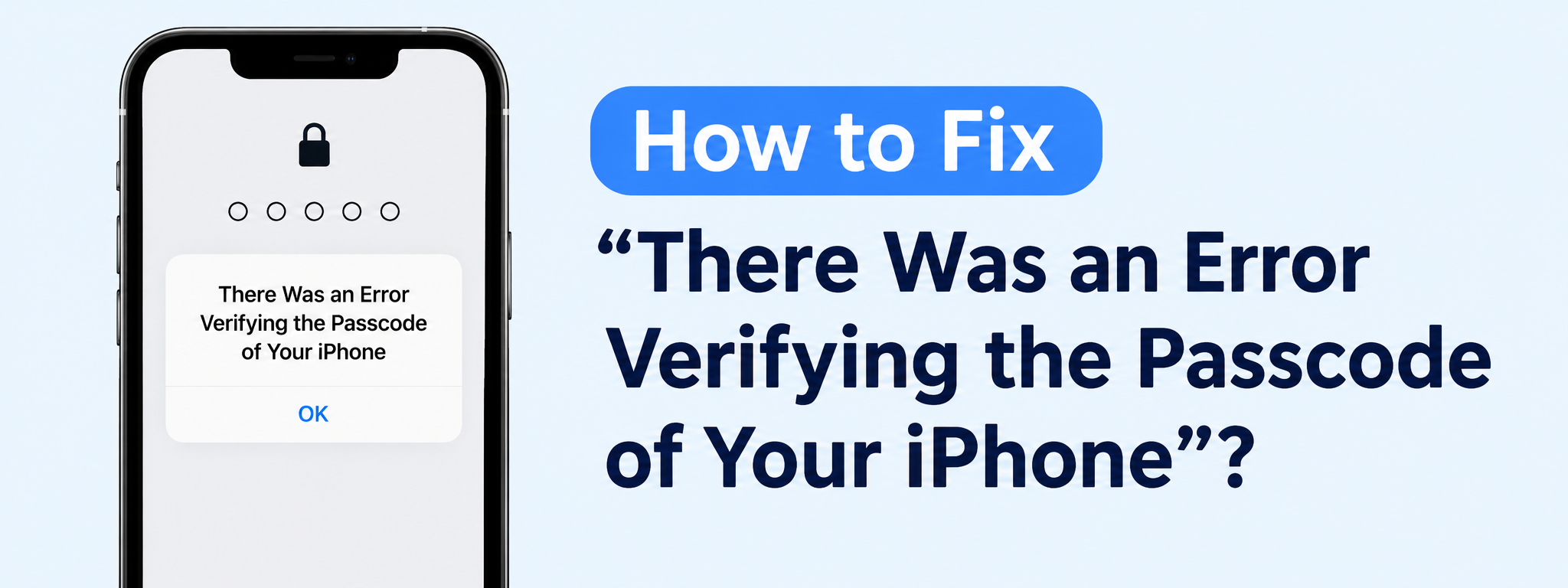
১. “আপনার আইফোনের পাসকোড যাচাই করতে ত্রুটি হয়েছে” সমস্যাটি কীভাবে সমাধান করবেন?
নিচের সমাধানগুলো ক্রমানুসারে চেষ্টা করুন। কিছু পদ্ধতি ডেটা নষ্ট করে না, আবার কিছু ডেটা মুছে ফেলতে পারে, তাই সাবধানে বেছে নিন।
১) আপনার পাসকোডটি পুনরায় যাচাই করুন
নিশ্চিত করুন যে আপনি সঠিক আইফোন পাসকোড দিচ্ছেন। আপনি যদি সম্প্রতি এটি পরিবর্তন করে থাকেন, তাহলে মনে রাখবেন যে আপনার আইফোনের পাসকোডের প্রয়োজন হতে পারে।
নতুন পাসকোড
বারবার পাসকোড অনুমান করা থেকে বিরত থাকুন, কারণ অনেকবার ভুল চেষ্টার ফলে ডিভাইসটি সাময়িকভাবে নিষ্ক্রিয় হয়ে যেতে পারে।
২) আপনার আইফোনটি ফোর্স রিস্টার্ট করুন
সিস্টেমের একটি সাময়িক ত্রুটি পাসকোড যাচাইকরণে সমস্যা সৃষ্টি করতে পারে। আপনার আইফোনটি ফোর্স রিস্টার্ট করলে iOS রিফ্রেশ হতে পারে এবং সম্ভবত ত্রুটিটি দূর হয়ে যাবে।
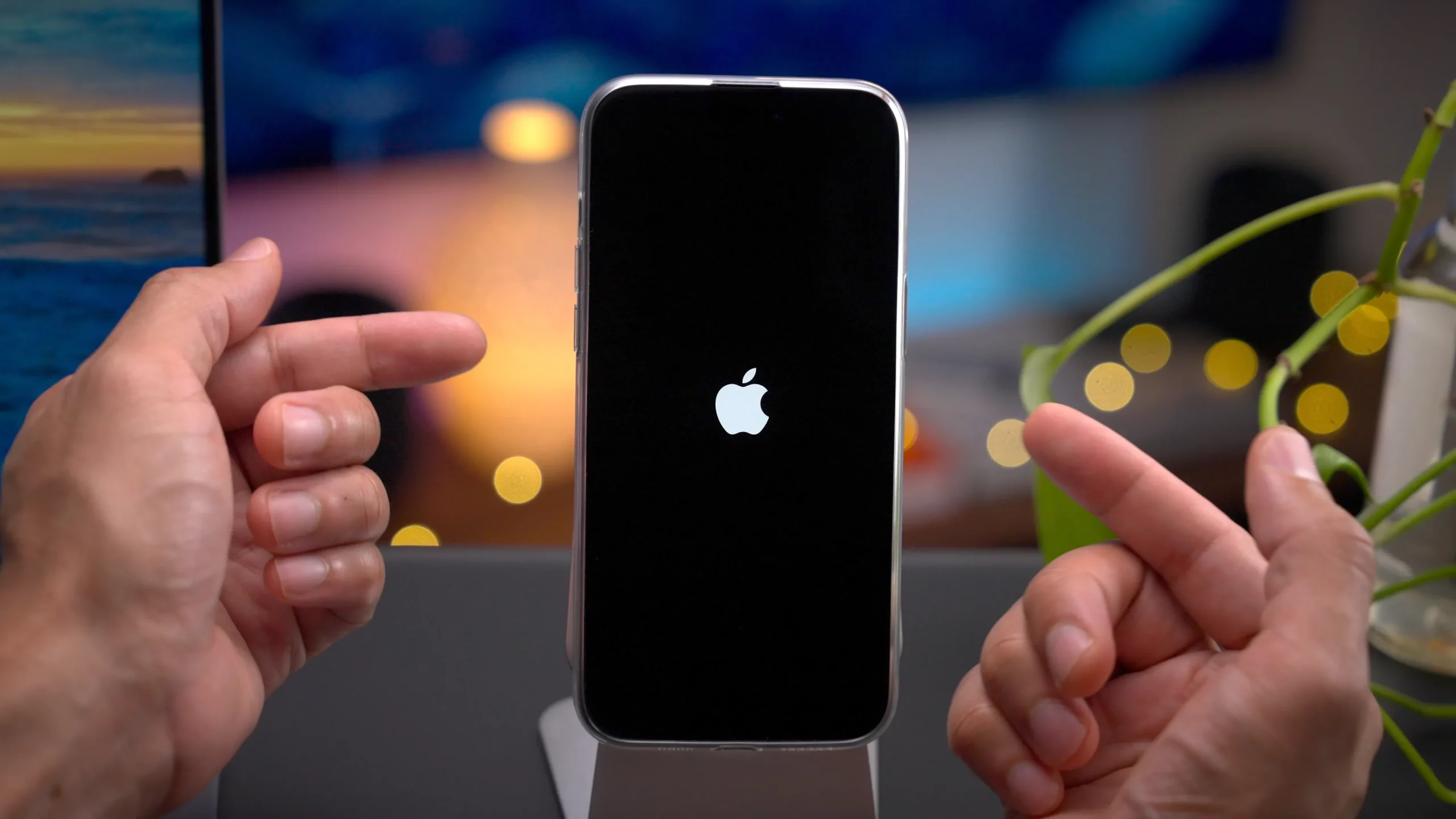
বেশিরভাগ নতুন আইফোনের ক্ষেত্রে, দ্রুত চাপুন এবং ছেড়ে দিন।
ভলিউম আপ
দ্রুত চাপুন এবং ছেড়ে দিন
ভলিউম ডাউন
তারপর টিপে ধরে রাখুন
পাশ
অ্যাপল লোগো না আসা পর্যন্ত বাটনটি চাপুন। রিস্টার্ট করার পর আবার আপনার পাসকোড দেওয়ার চেষ্টা করুন।
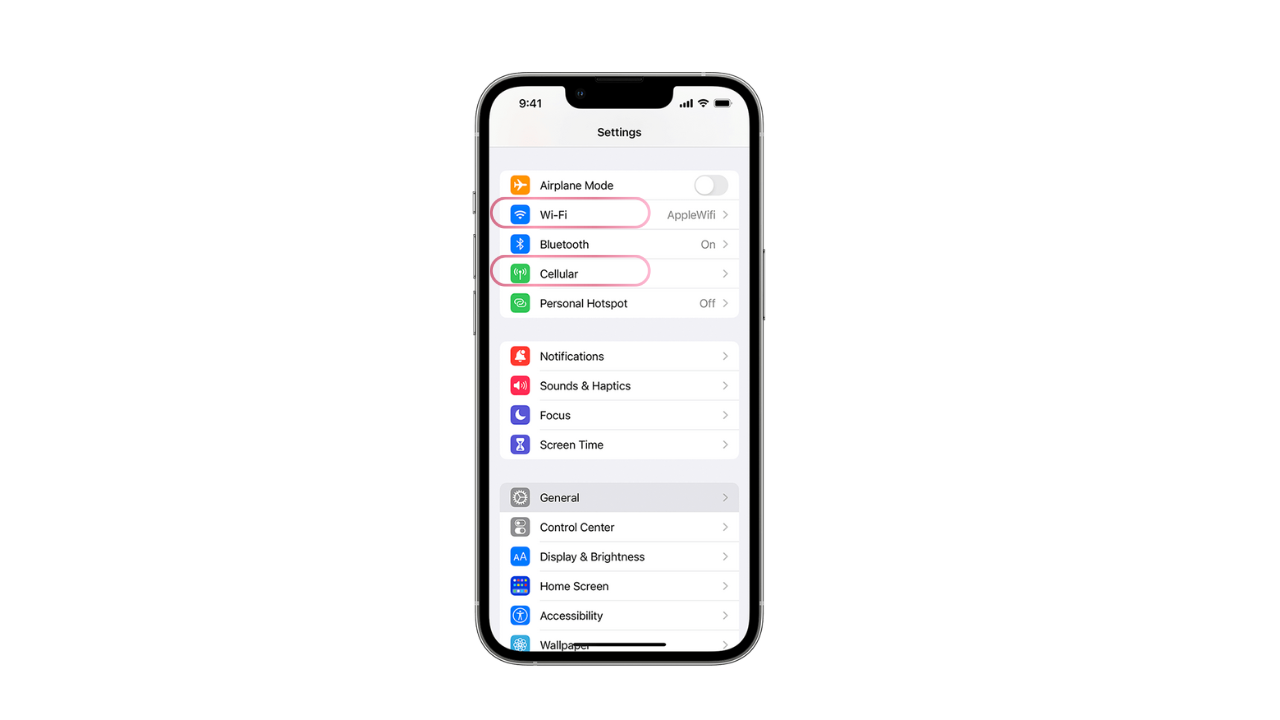
৩) আপনার ইন্টারনেট সংযোগ পরীক্ষা করুন
যদি ত্রুটিটি অ্যাকাউন্ট বা নিরাপত্তা যাচাইকরণ সম্পর্কিত হয়, তবে আপনার আইফোনটিকে একটি স্থিতিশীল ওয়াই-ফাই নেটওয়ার্কের সাথে সংযুক্ত করুন অথবা সেলুলার ডেটা ব্যবহার করুন, কারণ একটি নির্ভরযোগ্য ইন্টারনেট সংযোগ আইওএসকে অ্যাপলের পরিষেবাগুলির সাথে যোগাযোগ করতে সাহায্য করতে পারে।
৪) iOS আপডেট করুন
সফটওয়্যার বাগের কারণে মাঝে মাঝে প্রমাণীকরণ এবং পাসকোড-সম্পর্কিত সমস্যা হতে পারে। আপনি যদি আপনার আইফোন অ্যাক্সেস করতে পারেন, তাহলে এখানে যান।
সেটিংস > সাধারণ > সফ্টওয়্যার আপডেট
এবং উপলব্ধ যেকোনো আপডেট ইনস্টল করুন।
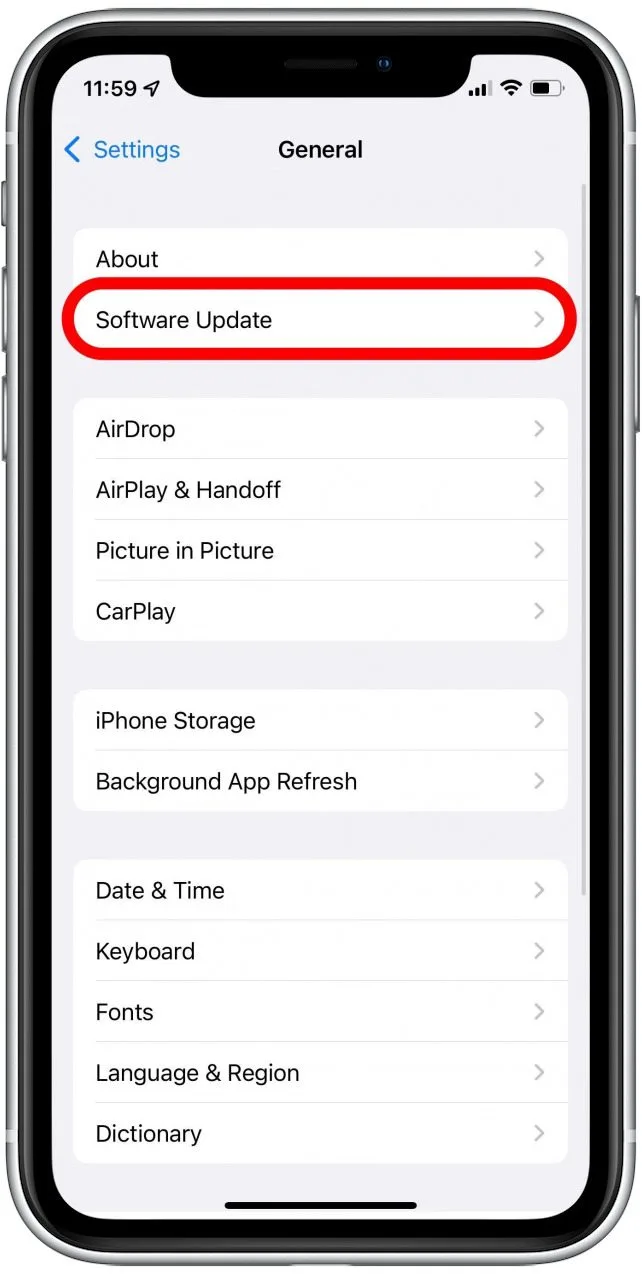
সর্বশেষ সামঞ্জস্যপূর্ণ iOS সংস্করণে আপডেট করলে পরিচিত সিস্টেম বাগগুলির সমাধান হতে পারে এবং ডিভাইসের স্থিতিশীলতা উন্নত হতে পারে।
৫) টাচস্ক্রিনের সমস্যা আছে কিনা পরীক্ষা করুন
কখনও কখনও সমস্যাটি আসলে পাসকোড নাও হতে পারে। একটি ক্ষতিগ্রস্ত বা অকার্যকর টাচস্ক্রিনের কারণে কোড প্রবেশ করানোর সময় ভুল সংখ্যা প্রদর্শিত হতে পারে।
স্ক্রিনটি পরিষ্কার ও শুষ্ক করুন, টাচ ইনপুটে বাধা সৃষ্টি করতে পারে এমন যেকোনো অ্যাক্সেসরিজ সরিয়ে ফেলুন এবং আবার পাসকোড দেওয়ার চেষ্টা করুন। যদি স্ক্রিনের নির্দিষ্ট কিছু অংশ ক্রমাগত সাড়া না দেয়, তাহলে হার্ডওয়্যার মেরামতের প্রয়োজন হতে পারে।
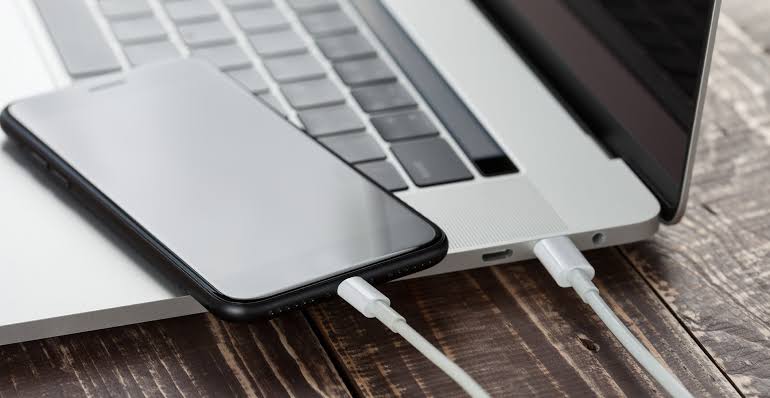
৬) আইফোনটিকে কম্পিউটারের সাথে সংযুক্ত করুন
আপনি যদি আপনার আইফোনটি স্বাভাবিকভাবে ব্যবহার করতে না পারেন, তবে সেটিকে একটি ম্যাক বা উইন্ডোজ কম্পিউটারের সাথে সংযুক্ত করুন এবং অ্যাপলের ডিভাইস-ম্যানেজমেন্ট টুল ব্যবহার করে প্রথমে ডিভাইসটি আপডেট করার চেষ্টা করুন, কারণ এটি রিস্টোর করলে আপনার ডেটা মুছে যেতে পারে।
৭) রিকভারি মোড ব্যবহার করুন
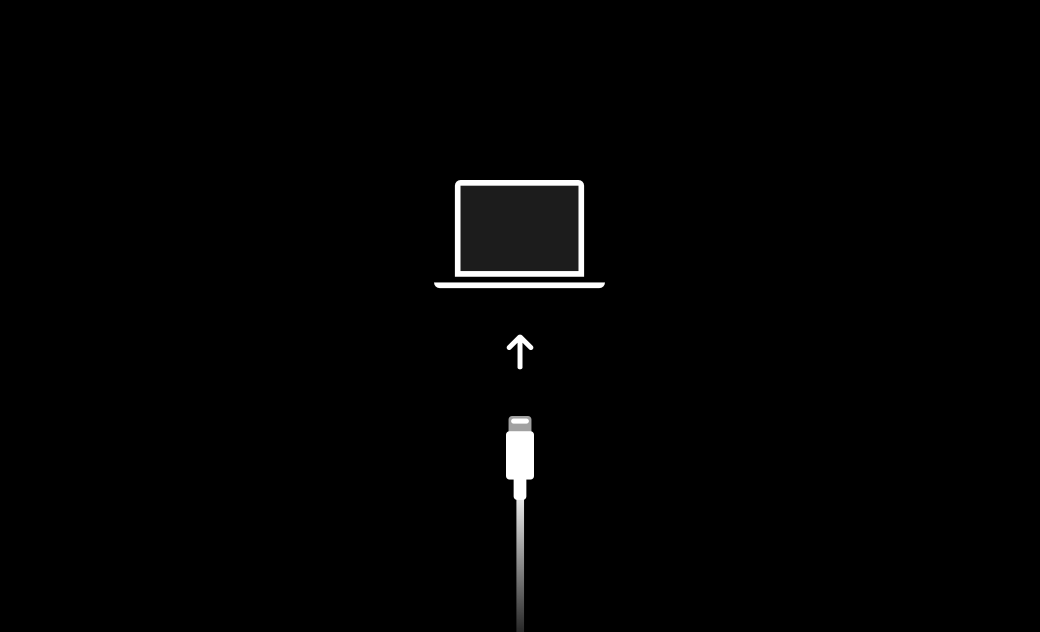
আপনার আইফোন আটকে গেলে, সঠিকভাবে চালু হতে ব্যর্থ হলে, বা ক্রমাগত গুরুতর সফটওয়্যার সমস্যা দেখা দিলে রিকভারি মোড সাহায্য করতে পারে।
আইফোনটিকে কম্পিউটারের সাথে সংযুক্ত করুন, আপনার মডেল অনুযায়ী উপযুক্ত বাটন কম্বিনেশন ব্যবহার করে রিকভারি মোডে প্রবেশ করুন, এবং তারপরে ফাইন্ডার অথবা অ্যাপলের উইন্ডোজ ডিভাইস-ম্যানেজমেন্ট সফটওয়্যার ব্যবহার করে ডিভাইসটি আপডেট বা রিস্টোর করুন।
একটি আপডেট আপনার ডেটা তাৎক্ষণিকভাবে মুছে না ফেলেই iOS পুনরায় ইনস্টল করতে পারে, অন্যদিকে একটি রিস্টোর সাধারণত ডিভাইসটির বিদ্যমান কন্টেন্ট মুছে ফেলে।
৮) আইফোনটি রিস্টোর করুন
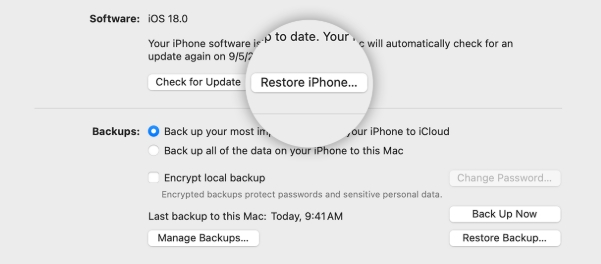
অন্যান্য সমাধান ব্যর্থ হলে, আইফোন রিস্টোর করলে গুরুতর সফটওয়্যার সমস্যার সমাধান হতে পারে। তবে, এটিকে শেষ উপায় হিসেবে বিবেচনা করা উচিত, কারণ রিস্টোর করলে আপনার ডেটা এবং সেটিংস মুছে যেতে পারে।
পুনরুদ্ধারের পরে, আপনি আইফোনটি আবার সেট আপ করতে এবং উপলব্ধ কোনো ব্যাকআপ থেকে আপনার তথ্য পুনরুদ্ধার করতে পারবেন।
২. বোনাস: AimerLab FixMate-এর সাহায্যে iOS সিস্টেমের ত্রুটিগুলির উন্নত সমাধান
যদি সাধারণ কোনো সমাধানই কাজ না করে, তবে সমস্যাটি কোনো গভীরতর iOS সিস্টেম ত্রুটির কারণে হতে পারে। এই পরিস্থিতিতে, জটিল সিস্টেম সমস্যাগুলো ম্যানুয়ালি সমাধান করার জন্য AimerLab FixMate একটি সুবিধাজনক বিকল্প প্রদান করে।
ফিক্সমেট এটি একটি iOS সিস্টেম রিপেয়ার প্রোগ্রাম, যা আইফোন এবং আইপ্যাডের ২০০টিরও বেশি সফটওয়্যার-সম্পর্কিত সমস্যা সমাধানে সাহায্য করার জন্য ডিজাইন করা হয়েছে, যার মধ্যে পাসকোড যাচাইকরণের ত্রুটিও অন্তর্ভুক্ত। জটিল প্রযুক্তিগত পদ্ধতির পরিবর্তে, এটি একটি নির্দেশিত মেরামত প্রক্রিয়া প্রদান করে, যা ব্যবহারকারীদের কম্পিউটার থেকে তাদের ডিভাইসের সমস্যা সমাধান করতে সাহায্য করে।
iOS-এর সমস্যা সমাধানে FixMate কীভাবে ব্যবহার করবেন:
- আপনার উইন্ডোজ বা ম্যাক কম্পিউটারে AimerLab FixMate ডাউনলোড ও ইনস্টল করুন।
- একটি ইউএসবি ক্যাবল ব্যবহার করে ক্ষতিগ্রস্ত আইফোনটি আপনার কম্পিউটারের সাথে সংযুক্ত করুন, তারপর... FixMate চালু করুন, “Fix iOS System Issues” খুঁজুন এবং “Start”-এ ক্লিক করুন।
- আপনি যদি আপনার ডেটা অক্ষুণ্ণ রেখে সিস্টেমটি মেরামত করার চেষ্টা করতে চান, তাহলে স্ট্যান্ডার্ড রিপেয়ার দিয়ে শুরু করুন, তারপর... উপযুক্ত ফার্মওয়্যার প্যাকেজটি ডাউনলোড করার জন্য নির্দেশাবলী অনুসরণ করুন।
- মেরামত প্রক্রিয়াটি নিশ্চিত করুন এবং FixMate-কে প্রয়োজনীয় iOS উপাদানগুলো পুনরায় ইনস্টল বা মেরামত করার অনুমতি দিন।
- প্রক্রিয়াটি শেষ হয়ে গেলে, ডিভাইসটি রিস্টার্ট করুন এবং পরীক্ষা করে দেখুন পাসকোড যাচাইকরণ ত্রুটিটি সমাধান হয়েছে কিনা।
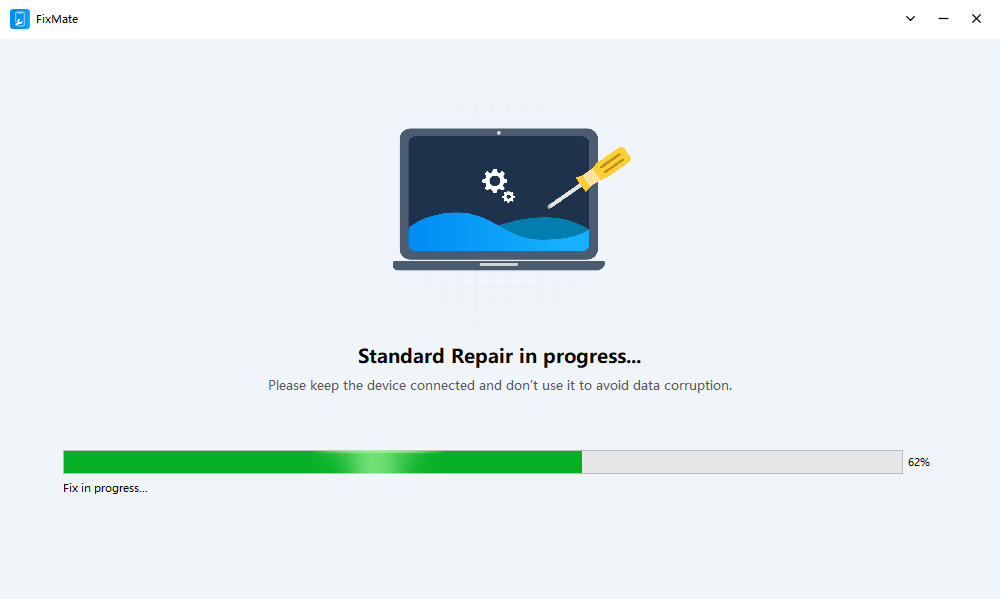
যদি স্ট্যান্ডার্ড রিপেয়ারে সমস্যার সমাধান না হয়, তবে আপনি অ্যাডভান্সড রিপেয়ার ব্যবহার করার কথা ভাবতে পারেন। তবে, অ্যাডভান্সড রিপেয়ার ডেটা মুছে ফেলতে পারে, তাই ডেটা হারানোর সম্ভাব্য ঝুঁকি বুঝে এবং যখনই সম্ভব আপনার তথ্যের ব্যাকআপ নিয়েই কেবল এটি ব্যবহার করুন।
3. উপসংহার
“আপনার আইফোনের পাসকোড যাচাই করতে ত্রুটি হয়েছে” বার্তাটির মানে এই নয় যে আপনার পাসকোডটি ভুল। সাময়িক iOS ত্রুটি, সংযোগের সমস্যা, টাচস্ক্রিনের সমস্যা, পুরোনো সফটওয়্যার এবং আরও গুরুতর সিস্টেম ত্রুটি—এগুলো সবই অপ্রত্যাশিত যাচাইকরণ সমস্যার কারণ হতে পারে।
প্রথমে আপনার পাসকোড চেক করুন, আইফোনটি রিস্টার্ট করুন, ইন্টারনেট সংযোগ পরীক্ষা করুন এবং iOS আপডেট করুন। যদি এই দ্রুত সমাধানগুলো কাজ না করে, তবে আপনি ডিভাইসটিকে কম্পিউটারের সাথে সংযোগ করে, রিকভারি মোড ব্যবহার করে, অথবা আইফোনটি রিস্টোর করে দেখতে পারেন।
iOS-এর গভীরতর সমস্যাগুলোর আরও সুবিধাজনক সমাধানের জন্য,
আইমারল্যাব ফিক্সমেট
এটি চেষ্টা করে দেখা যেতে পারে। এর গাইডেড স্ট্যান্ডার্ড রিপেয়ার এবং অ্যাডভান্সড রিপেয়ার মোডগুলো কোনো জটিল ম্যানুয়াল পদ্ধতি ছাড়াই বিভিন্ন iOS সিস্টেম ত্রুটি খুঁজে বের করার প্রক্রিয়াকে সহজ করে তুলতে পারে। যদি সাধারণ সমাধানগুলো কাজ না করে, তবে আপনার আইফোনটি মেরামত করে সেটিকে আবার স্বাভাবিকভাবে সচল করতে FixMate একটি কার্যকর পরবর্তী পদক্ষেপ হতে পারে।
- কীভাবে আইফোনে পোকেমন গো স্পুফ করবেন?
- Aimerlab MobiGo GPS লোকেশন স্পুফারের ওভারভিউ
- কীভাবে আপনার আইফোনে অবস্থান পরিবর্তন করবেন?
- iOS এর জন্য শীর্ষ 5টি নকল জিপিএস লোকেশন স্পুফার
- জিপিএস লোকেশন ফাইন্ডার সংজ্ঞা এবং স্পুফার সাজেশন
- কীভাবে স্ন্যাপচ্যাটে আপনার অবস্থান পরিবর্তন করবেন
- কিভাবে iOS ডিভাইসে অবস্থান খুঁজে/শেয়ার/লুকাবেন?